
As an Advisor, you may email a single Advisee, all of your Advisees, or a selected group of Advisees.
See Also: Advisor Email Lists FAQ
To Get Started
On the Advisee List page, select either the Search tab or the Advisee Quick View tab, and click on the Search button.
A list of Advisees matching the search filters will appear.
To Email a Single Advisee
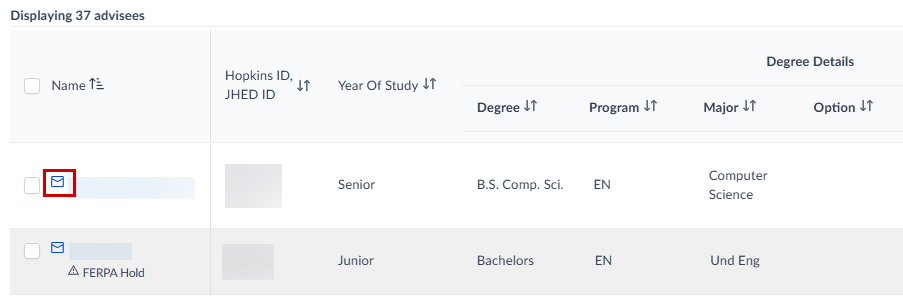
Click the email icon next to the Advisee you’d like to email. This will bring up your default email client.
To Email All or Some Advisees
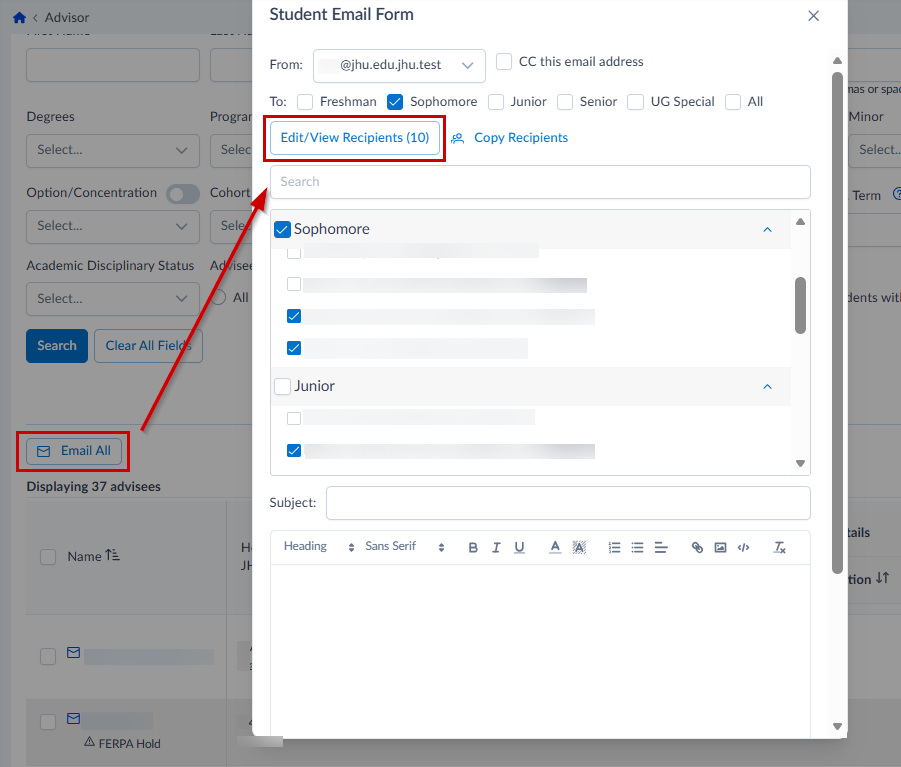
Click the Email All button above the search results. This opens the Student Email Form.
On the Student Email Form, click Edit/View Recipients to select your recipients.
Enter a subject and compose your email.
Click Send to email to selected recipients.
Email Tips
- You can use the filters to narrow your search results and fine-tune your recipient list. For example, to email Freshmen on Academic Probation, select those filters and click Search. A filtered list of students will appear. Click Email All; the Edit/View Recipients list will display only students who match the selected criteria.
- Use the checkboxes next to the Year of Study options to select everyone in that group. You can also fine-tune with the Edit/View Recipients button.
- Use the Copy Recipients button to copy the list of selected email addresses to your clipboard. This is helpful if you’d rather send an email using a different email client.
- If you’d like to cc yourself on the email, check the box for CC this email address